Choose a format around the recipient
Finder can create a basic ZIP: select files or folders, right-click or Control-click, then choose Compress. For additional compression settings, passwords or split volumes, use a tool that supports those options. This guide uses 365Zip, which creates ZIP and 7z archives rather than RAR.
Start with what the recipient can open. ZIP is a practical first choice for routine sharing. Before choosing 7z, confirm that the recipient has compatible software. Actual size savings depend on the files and settings, not just the format’s reputation.
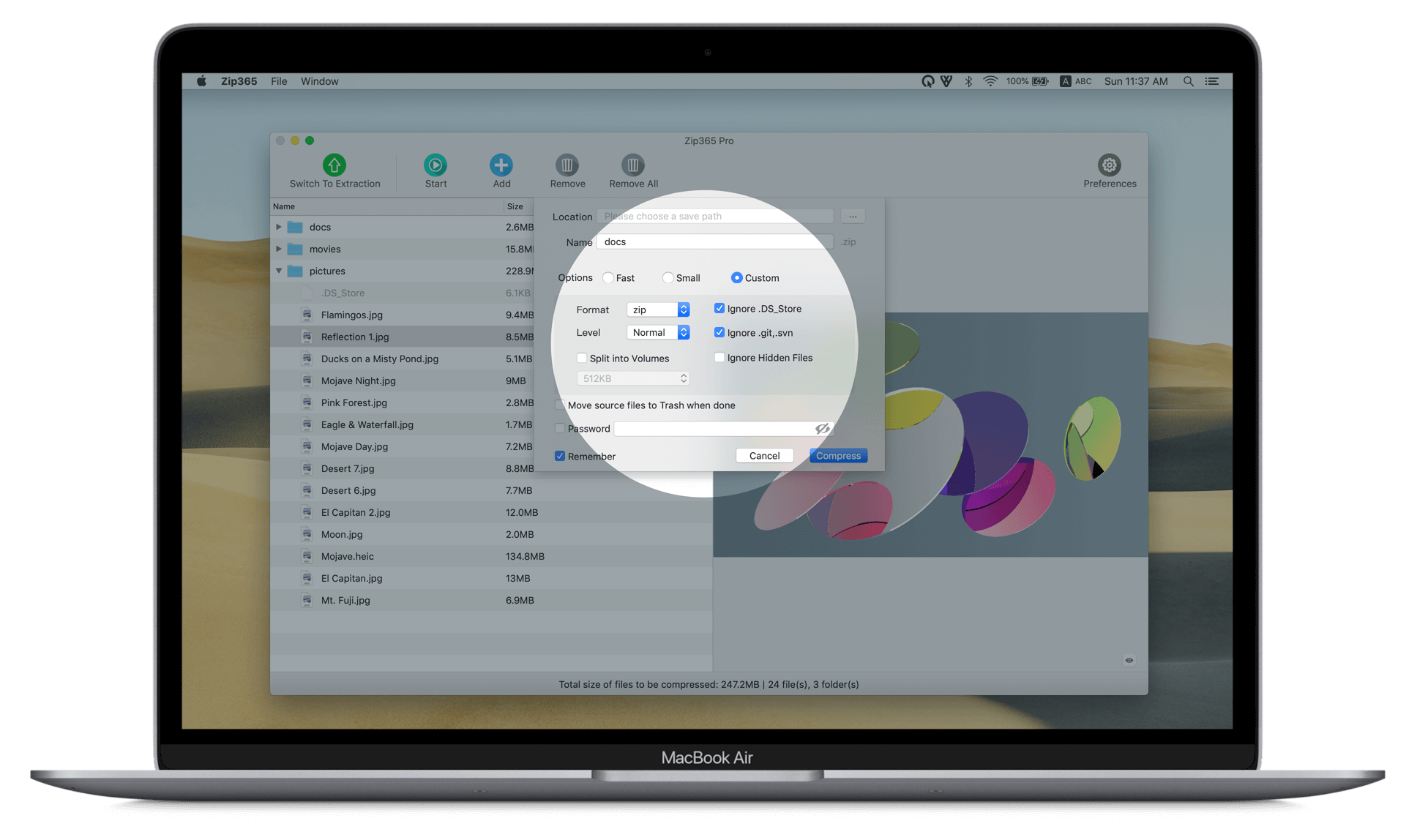
Create a ZIP or 7z archive with 365Zip
- Organize the files and folders for the delivery. Remove unnecessary temporary material and check for private content.
- Add the content through the app’s compression entry. If the Finder extension is enabled, you can also begin from the files’ context menu.
- Choose ZIP or 7z and confirm the output name and location.
- Configure the compression mode, password and volumes as needed, then create the archive.
- Reopen the result and check its file list and contents before sharing it.
Balance compression time and output size
| Situation | Mode to try | What to verify |
|---|---|---|
| A time-sensitive delivery | Faster | Creation time and completeness |
| Output size matters most | Smaller | Actual size and time using the same input files |
| Specific format or level requirements | Custom | Recipient compatibility before tuning the level |
365Zip provides faster, smaller and custom modes with configurable compression levels. Photos, video and already-compressed files may have little remaining room for size reduction. Do not expect every archive to become substantially smaller.
Test a password-protected archive as the recipient would
Set a password during archive creation when protection is needed. Once the archive is complete, reopen it with the intended extraction tool and confirm that the contents can be read. A wrong password, incompatible encryption support and damaged data are different problems; successful file creation alone does not prove a successful delivery.
- Use a password that is not easy to guess and keep an appropriate record of it.
- Consider sending the password through a different channel from the archive.
- Do not assume that setting a password also hides filenames. If that matters, verify the available settings and inspect the actual result.
Deliver the complete set of split volumes
Split archives are useful when a transfer service limits individual file sizes. After choosing a volume size, keep the generated names intact and deliver every part. Tell the recipient to put all parts in one folder and open the first volume.
Splitting does not itself reduce the total size and does not replace password protection. A missing part can prevent the archive from being read. Before sending it, copy the complete set into a separate test folder and verify extraction.
Check the delivery before sending
- The recipient can open the chosen ZIP or 7z format; the extension has not simply been renamed to another format.
- The folder structure and file count are correct, and key files can be previewed or extracted.
- Passwords have been tested and all split volumes are included.
- For reorganizing an existing ZIP directly, check the scope of ZIP editing. Feature availability and purchase conditions depend on the current product and app information.
For a basic ZIP alone, see Apple’s Finder compression instructions. Choose additional software to address the settings or organization work you actually need.
Next, see whether the tool fits your workflow.
Explore 365Zip compression and download