Try the built-in ZIP workflow first
Double-click a ZIP file in Finder to extract it. To create a basic ZIP, select files or folders, Control-click or right-click, and choose Compress. See Apple’s compression and extraction instructions for the built-in workflow.
Opening RAR or 7z files, inspecting archives before extraction, taking out only selected content, handling split volumes and reorganizing an existing ZIP require a closer look at a tool’s capabilities. Support differs between tools and macOS versions; an extension alone does not tell you which operations are available.
Separate extraction, creation and direct editing
| Format in 365Zip | Browse and extract | Create an archive | Edit contents directly |
|---|---|---|---|
| ZIP | Supported | Supported | Supported for editable ZIPs |
| 7z | Supported | Supported | Direct editing is not supported |
| RAR | Supported | RAR creation is not supported | Direct editing is not supported |
Extracting a RAR archive does not mean a tool can create one. Browsing a format also does not establish that its contents can be edited directly. Check these capabilities separately before relying on a format for a delivery.
Preview an archive before choosing what to extract
- Open the archive in 365Zip and inspect its folder tree, filenames and structure.
- Find the relevant file and try a preview. Preview support for pictures, documents and other files also depends on macOS Quick Look.
- If you only need a few files, select those files or folders before extracting. You can also use the app’s drag-out extraction workflow.
- Confirm the destination. Resolve name collisions by checking whether replacement or renaming is appropriate.
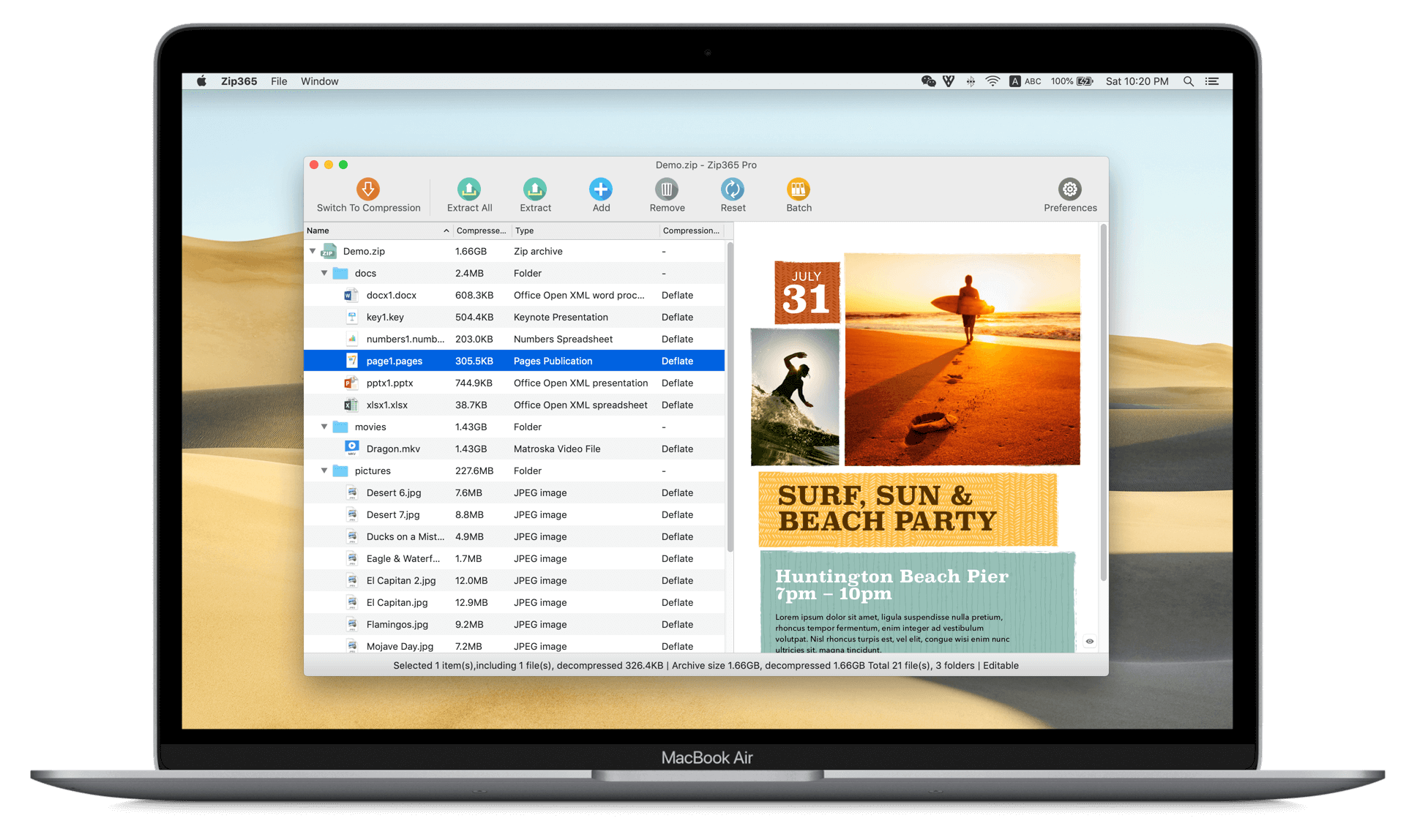
Browsing a directory is different from extracting an entire archive into a destination folder. Previewing an individual file may temporarily extract its contents; this is separate from manually extracting the whole package into a destination folder.
Troubleshoot password-protected and split archives
- Passwords: check case, spaces and extra characters introduced by copying. An extraction tool cannot normally read encrypted contents without the correct password.
- Split volumes: keep all parts of the same archive together, preserve their names and open the first volume. A missing part can prevent extraction.
- Permissions: a sandboxed Mac app may need access to the selected files or folder, particularly to read additional volumes.
- Damaged files: check that the download completed and the extension was not changed incorrectly, then contact the sender. Trying more passwords or apps cannot restore missing data.
When direct ZIP editing is useful
Use 365Zip’s ZIP editing features to add material, remove old files, rename entries or move folders inside an existing archive. To change a file’s actual content, edit it in an external app and confirm the update back into the ZIP.
Keep a copy of important originals and reopen the edited archive to inspect it. Direct ZIP editing is an advanced feature whose availability depends on version and authorization. Other formats do not inherit the same editing support. For repackaging, continue with the guide to creating ZIP, 7z and password-protected archives on Mac.
Next, see whether the tool fits your workflow.
Explore 365Zip format support and download