See what’s in there first
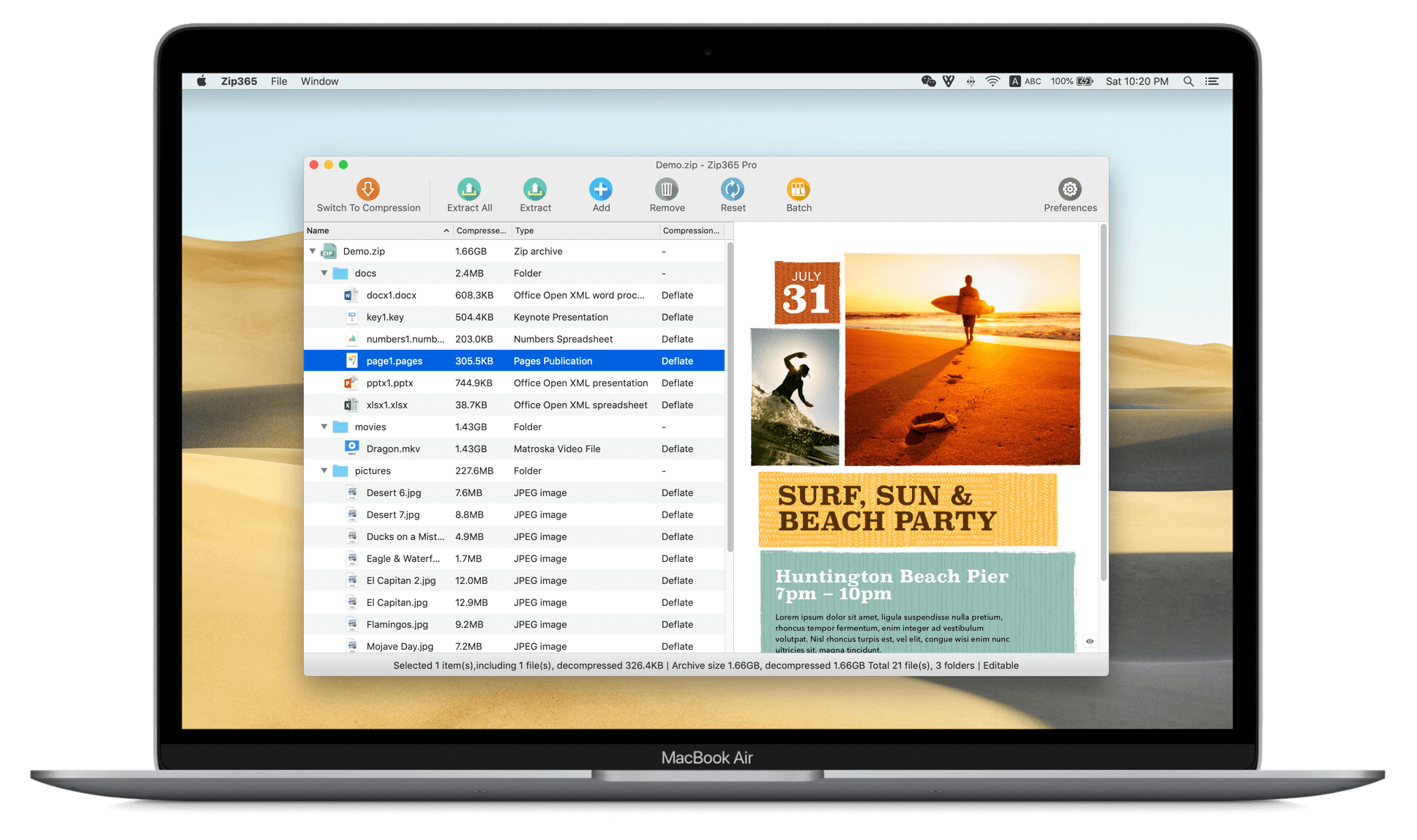
Explore the archive’s folder tree and preview images, documents and other supported files with Quick Look. Find what matters before extracting.
- Folder tree
- Quick Look preview
- Name & type search
For the files that come and go on your Mac
Look inside. Extract what you need. Organize files directly in a ZIP, then package the next delivery. 365Zip makes archives easier to work with.
macOS · Requirements and purchase options on the App Store
SEE IT IN ACTION
Preview an archive, extract selected files, edit a ZIP and package your next delivery. See 365Zip in a quick walkthrough.
01 / PREVIEW & EDIT
The folder tree, file preview and editing tools share one window. Find what you need, then extract it or organize the ZIP.
Explore the archive’s folder tree and preview images, documents and other supported files with Quick Look. Find what matters before extracting.
Need one image or a single folder? Select it and extract, or drag it out. When names collide, choose whether to replace or rename.
ZIP EDITING · ADVANCED FEATURE
Add, delete, rename or move files inside a ZIP, and create folders. To change a file’s contents, edit it in an external app and confirm the update back into the archive.
Direct editing is for editable ZIPs. Support for other formats differs.
02 / COMPRESSION MODES
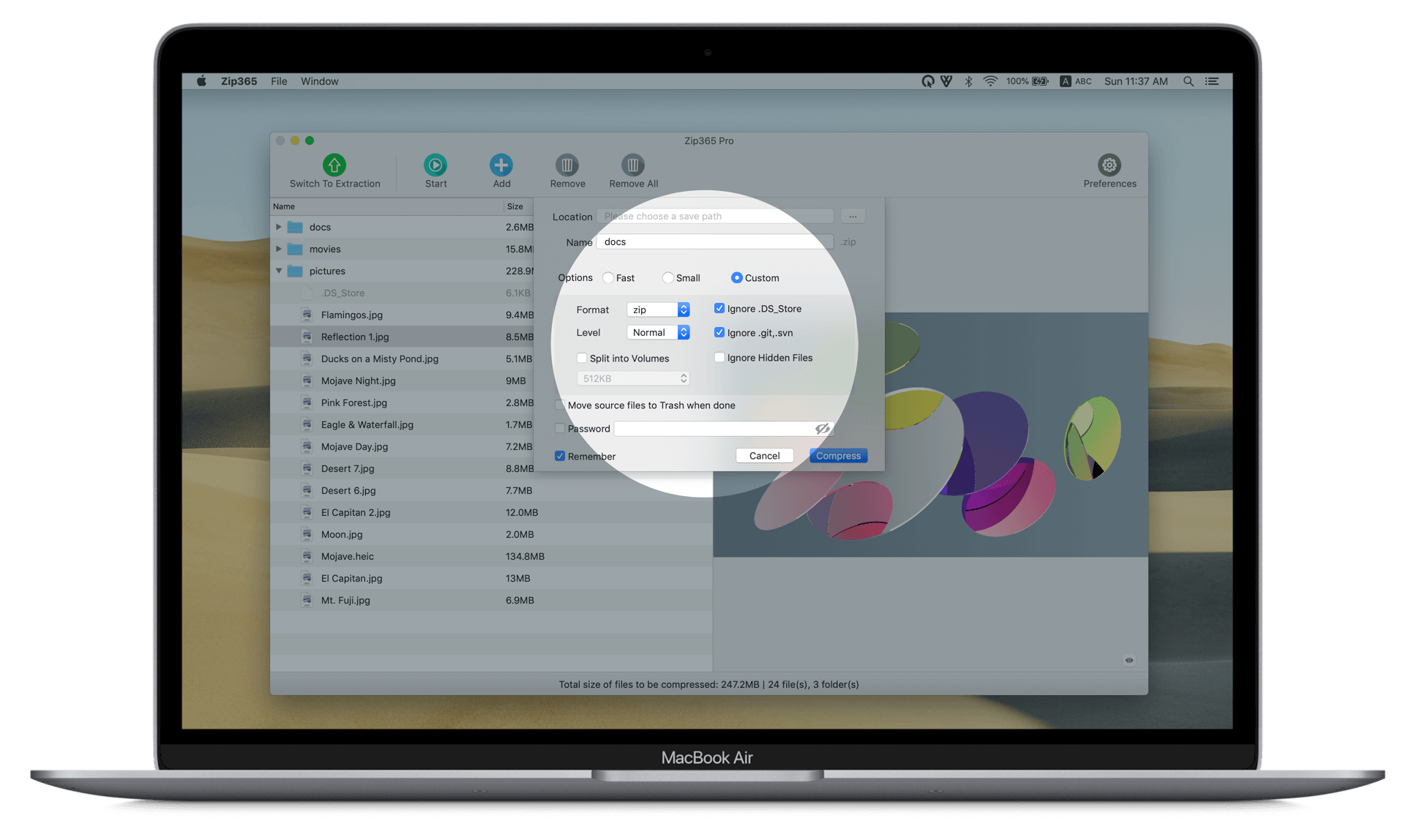
Favor speed, smaller size or your own settings. Create ZIP or 7z archives from files and folders, with passwords and split volumes when needed.
03 / FINDER ACTIONS
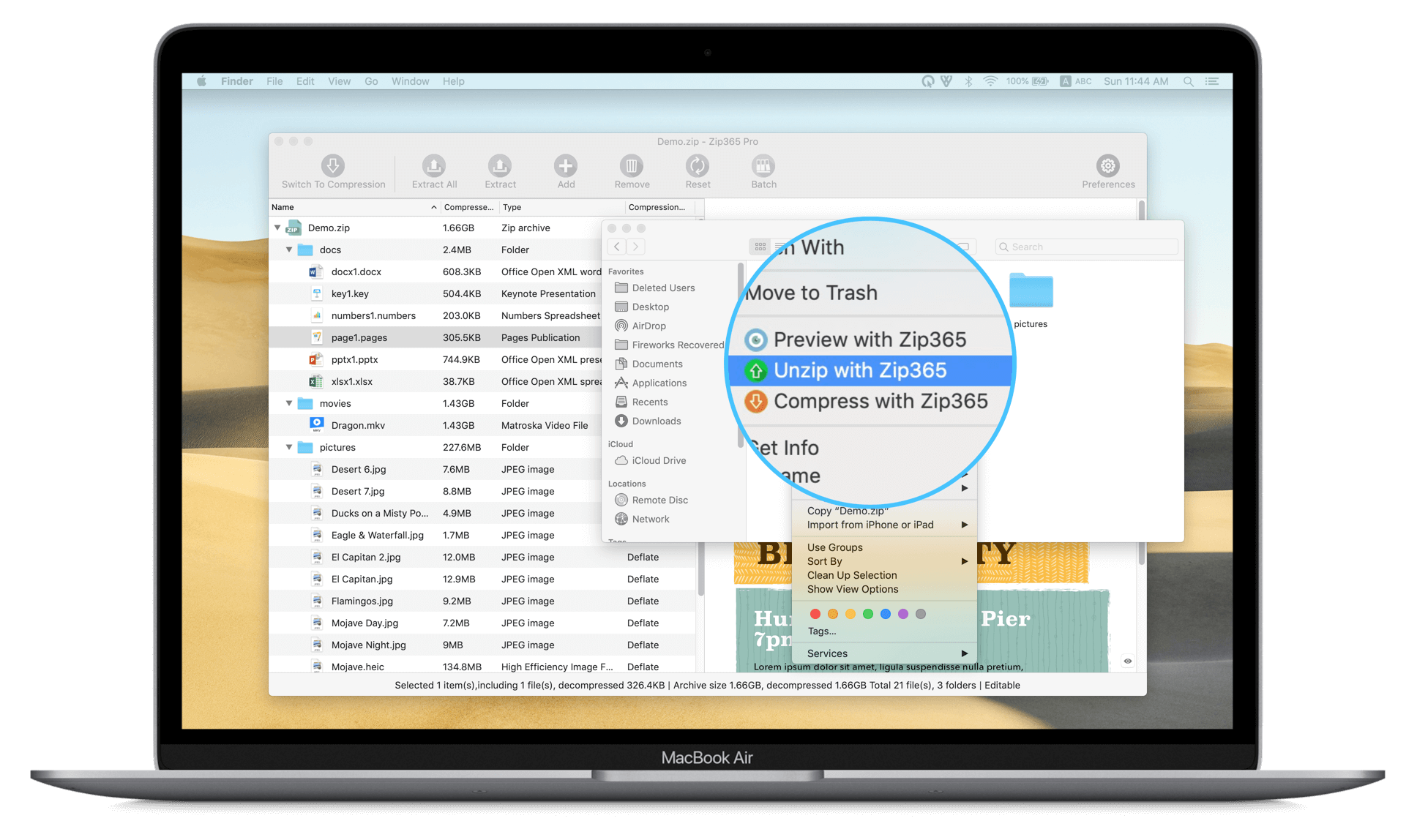
Enable the Finder extension to preview, extract or create archives from the context menu. Select your files and get straight to the next step.
Enable the Finder extension in System Settings before first use.
04 / YOUR PREFERENCES
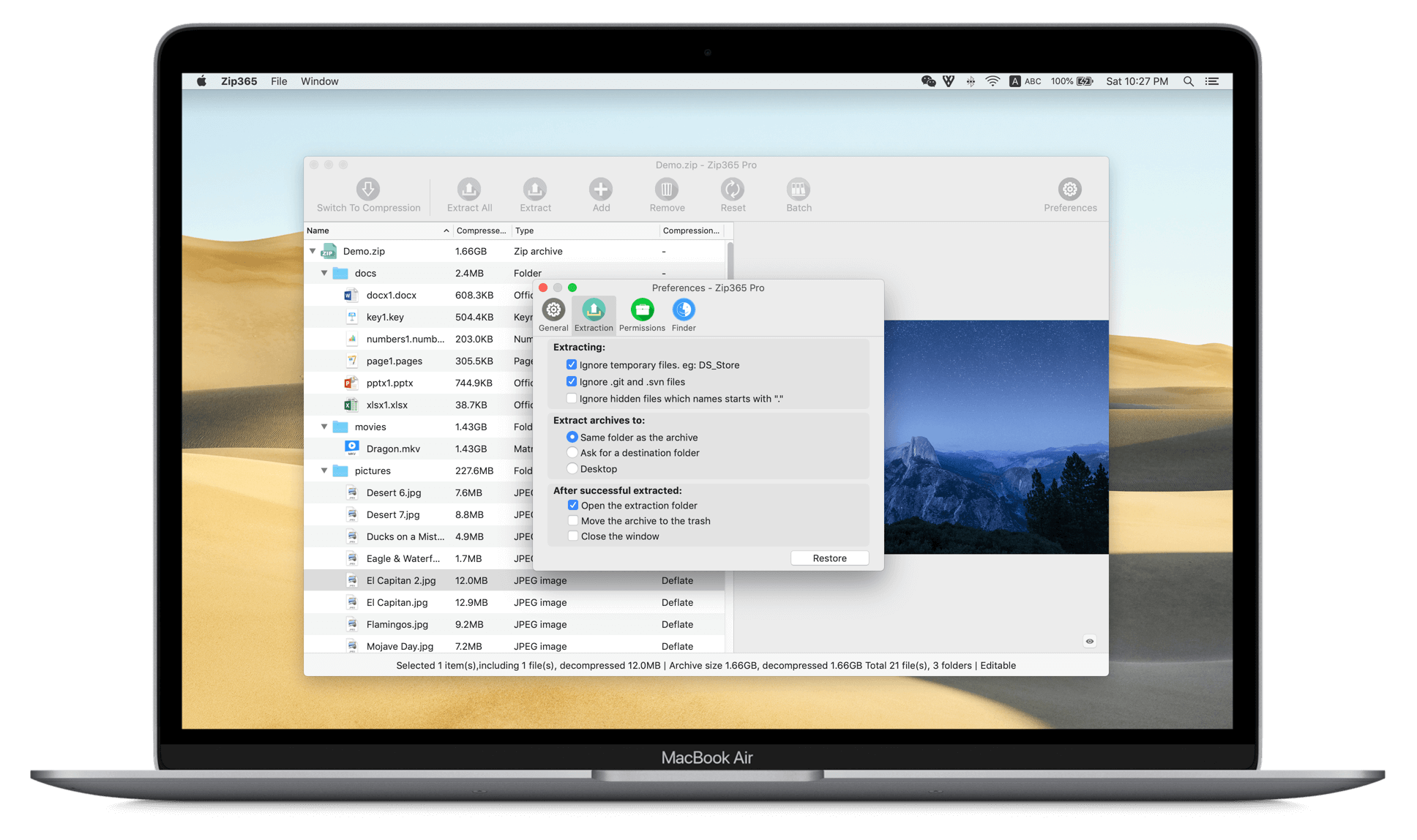
Filter unwanted files, choose where archives are extracted and decide what happens when the task finishes. Keep the settings that suit your routine.
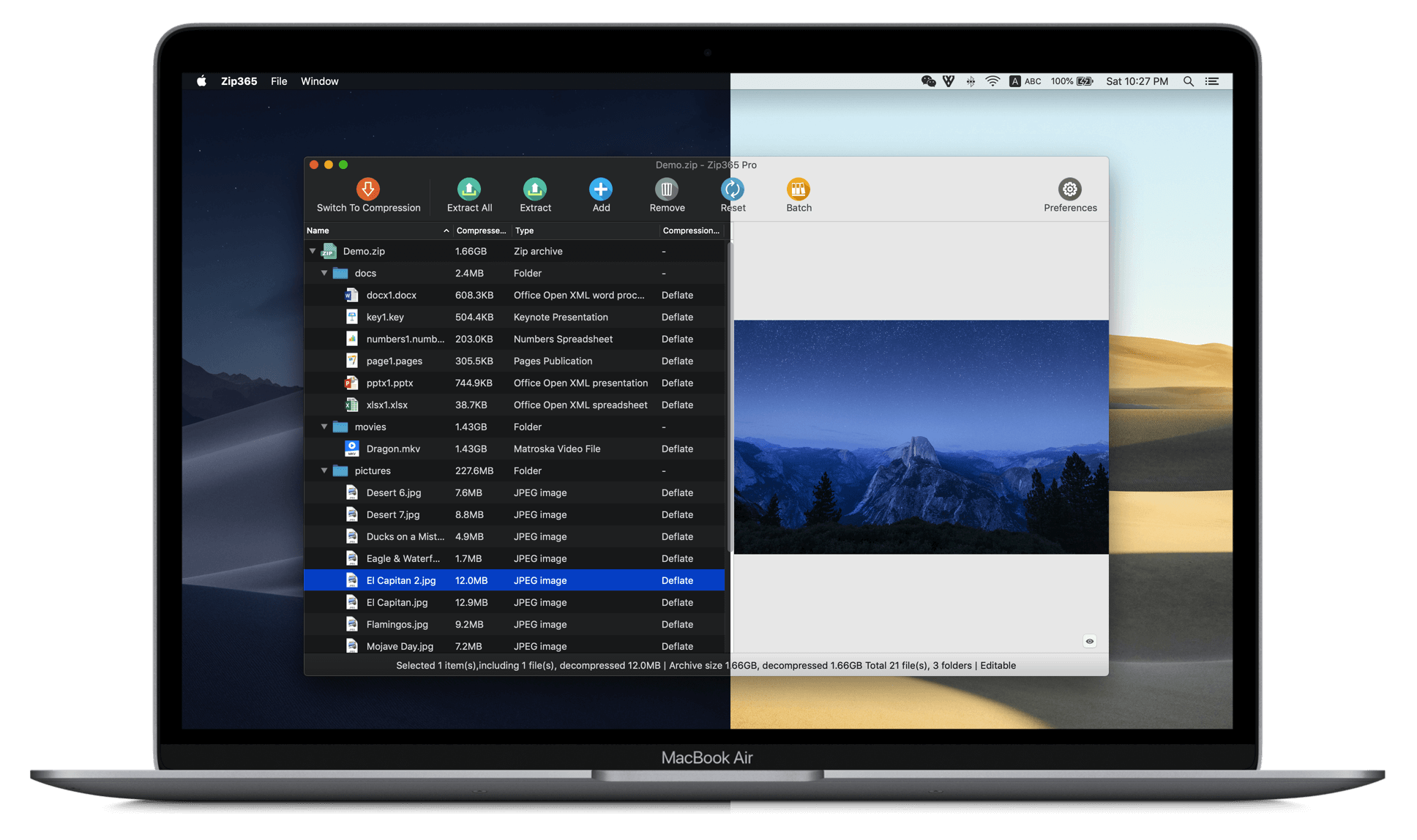
05 / LIGHT & DARK
Use light or dark themes, or follow your system appearance. Keep the interface comfortable as your surroundings change.
MORE THAN ONE ARCHIVE
Extract multiple archives in a batch, including password-protected and split archives. Set the destination and what happens when extraction finishes in preferences.
Handle multiple archives together and save the repeat steps.
Open encrypted and split archives, with folder access when required.
Keep different archives open and organize each task in its own window.
Different formats. Clear capabilities.
Extraction, creation and direct editing each have their own scope.
ZIP · 7z · RAR · TAR · GZIP · BZIP2 & more
Supports many common archive formats. File previews depend on macOS Quick Look support.
ZIP · 7z
Configure compression level, passwords and split volumes.
Editable ZIPs
Add, delete, rename and move files, or create folders.
FAQ
RAR is supported for extraction and browsing. Current creation formats are ZIP and 7z. Direct editing is for editable ZIPs; an extractable format is not necessarily editable.
Browsing the folder tree does not unpack the entire archive into a destination folder. To preview an individual file, the app may temporarily extract that content and pass it to Quick Look.
Keep all volumes from the same set in one folder, then open the first volume. The app may request access to that folder so it can read the remaining volumes.
365Zip follows the macOS sandbox rules. Opening, extracting or editing files requires access to the relevant files or folders. You can manage existing authorizations in preferences.
The app offers trial and upgrade options. Advanced features such as ZIP editing depend on the version and license state. See the app and App Store for current trial rules, purchase options and prices.

365Zip · Archive tools made for your Mac
Get it on the App Store